KI-Generator für Bild zu Video

Verwandeln Sie ein Foto oder eine Illustration online in ein kurzes KI-Video. Laden Sie ein Bild hoch, beschreiben Sie die Bewegung des Motivs oder der Kamera, wählen Sie 480p oder 720p und sehen Sie sich das Ergebnis an oder laden Sie es herunter.

Bild hochladen
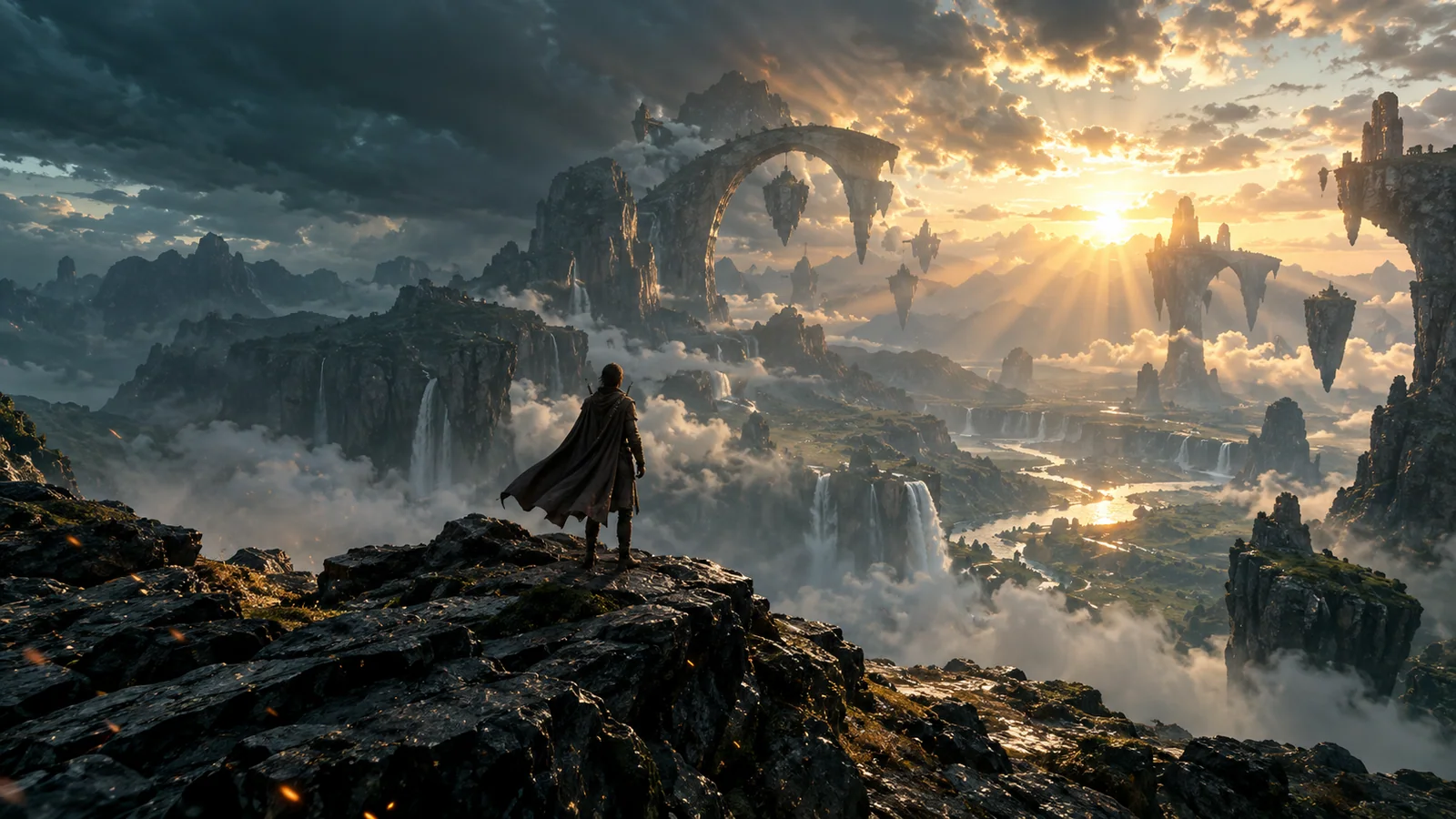
Episches Kinotal mit schwebenden Steinbögen, Wasserfällen, Gewitterwolken und einem einsamen Reisenden bei Sonnenaufgang
Ein Standbild, gemacht für Wind, Nebel und eine langsame filmische Kamerafahrt.

KI Bild-zu-Video Generator

Erwecken Sie Standbilder mit natürlicher Bewegung und filmischen Kamerafahrten zum Leben.

Auflösung
Für die Videogenerierung ausgewähltes Bild

So wird aus einem Bild ein Video

Beginnen Sie mit einem klaren Bild, geben Sie der Bewegung eine Richtung und prüfen Sie den fertigen Clip, bevor Sie ihn teilen.

  1. Bild hochladen

    Laden Sie ein JPG-, PNG- oder WebP-Bild hoch. Wählen Sie eine klare Vorlage mit einem gut erkennbaren Motiv und genügend Raum für die gewünschte Bewegung.

  2. Prompt schreiben

    Beschreiben Sie eine Handlung des Motivs oder eine Kamerabewegung. Ergänzen Sie Stimmung oder Bewegungen der Umgebung nur, wenn sie für die Szene hilfreich sind.

  3. Ergebnis erstellen

    Wählen Sie 480p oder 720p und starten Sie die Erstellung. Sehen Sie sich das Ergebnis an, prüfen Sie kleine Details und laden Sie den Clip herunter, den Sie behalten möchten.

From still frame to moving shot

What is image to video AI?

Image to video AI uses an uploaded still image as the visual starting point for a moving clip. A motion prompt can guide the subject, the camera, or the atmosphere while the source image anchors the scene.

Unlike text to video, the workflow begins with your picture. Unlike a slideshow maker, it generates movement inside a scene instead of arranging several existing photos in sequence.

Review every result. AI-generated motion can change faces, lettering, product labels, hands, and small background details. A simpler prompt or clearer source image may reduce unwanted changes, but it cannot guarantee perfect consistency.

Cinematic source-image ideas

Give the frame somewhere to go

Strong source images contain a clear subject, readable depth, and natural elements that can move. Use these original stills as inspiration for character motion, camera movement, weather, and atmosphere.

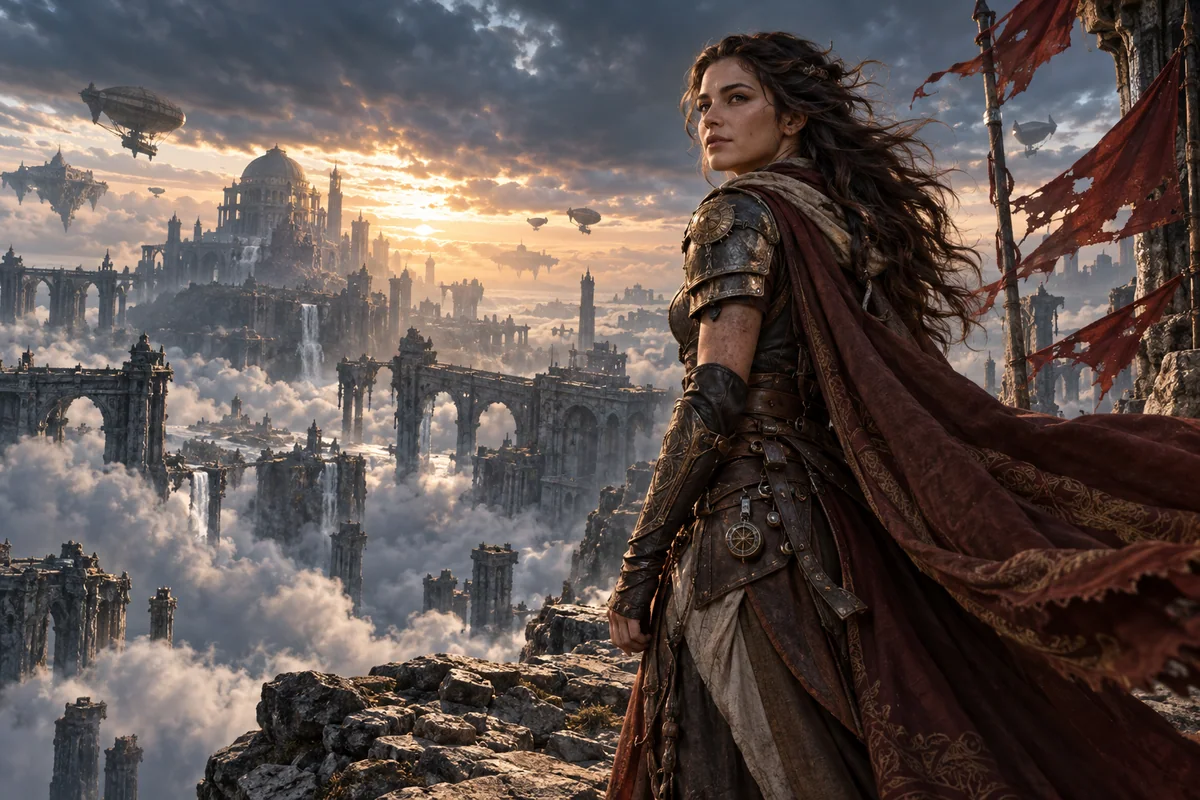
Armored explorer overlooking a ruined sky city with airships and sunset clouds

Character motion

Direct the character, then the camera

A clear silhouette, visible fabric, and layered background create room for subtle movement without asking every part of the image to change at once.

Prompt direction “The explorer holds her position as wind moves her hair and cloak. The camera makes a slow cinematic push-in. Keep the distant city stable.”
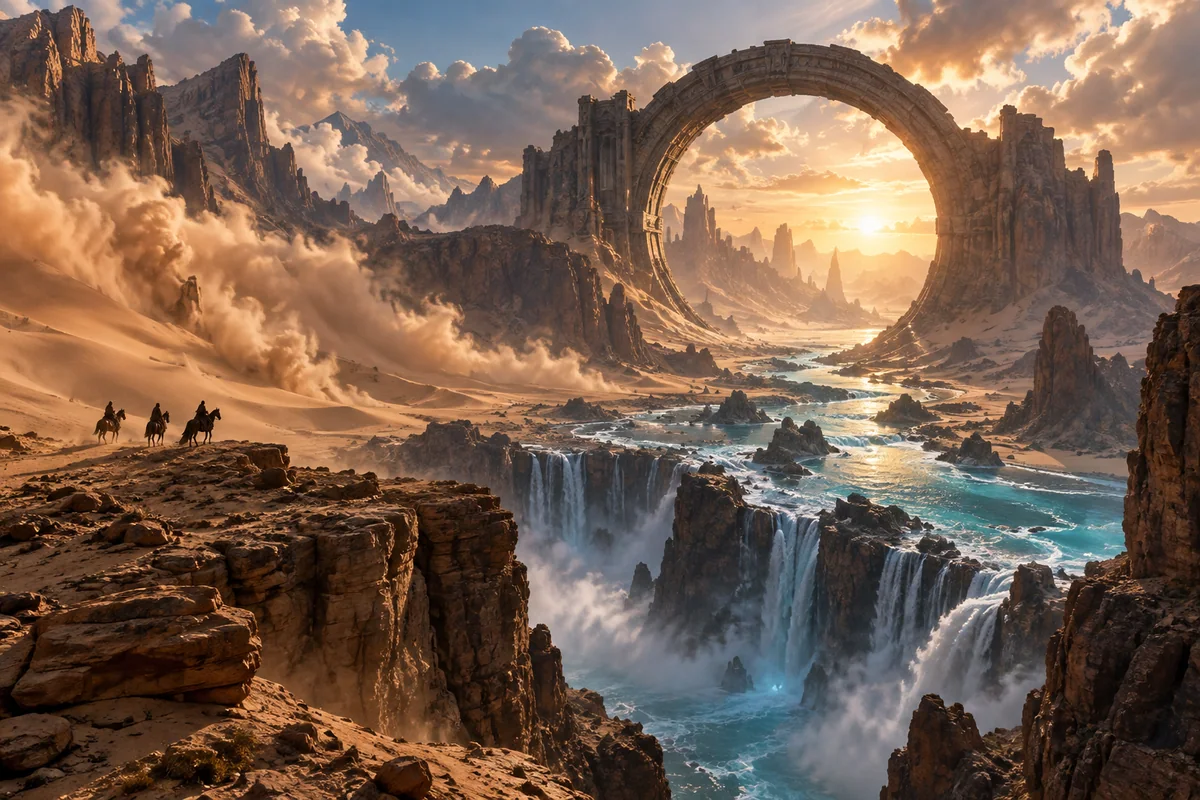
Monumental ring-shaped stone gateway above a luminous river and desert canyon at sunset

Environmental motion

Let the world carry the movement

Landscapes work well when the prompt separates moving elements such as clouds, water, and sand from the architecture that should remain steady.

Prompt direction “Clouds roll slowly toward the stone gateway as the river flows and sand drifts across the canyon. Use a locked camera and keep the gateway stable.”

These images are original illustrative source concepts created for this page, not claims about a specific generated-video result. Output varies with the source image, prompt, and model.

Motion prompt guide

Write the shot, not a wall of adjectives

Start with one main action. Say what should move, how the camera should behave, and what should remain stable. Add lighting or atmosphere only after the motion is clear.

Subject actionCamera moveScene motionKeep stable

Product photo

“The camera moves slowly toward the bottle. The bottle stays upright and still on the table. Keep the label facing the camera and the lighting steady.”

Landscape photo

“Leaves move gently in a light breeze. The camera remains still. Keep the buildings and the horizon stable.”

Illustrated character

“The illustrated character blinks once and gives a small smile. Use a fixed camera and preserve the original drawing style.”

Clear settings and costs

Choose a resolution before you generate

The workspace shows the credit cost before generation. Test the idea at 480p or select 720p when you want a sharper clip.

480p

10 credits

A practical option for testing a source image and motion prompt.

720p

20 credits

A higher-resolution option for the version you want to keep and share.

Check the clip before publishing

  • Faces, hands, and character identity
  • Text, logos, and product labels
  • Background flicker and warped edges
  • Cropping, camera motion, and scene continuity

Generation currently requires a paid account with enough credits. Completed videos can be previewed and downloaded, and recent task history is kept in this browser for one day. Save your file promptly because video results are temporary.

Image to video AI questions

Practical answers about source images, motion prompts, credits, resolution, preview, and download.

Upload one image, write a focused motion prompt, choose 480p or 720p, and generate. When processing finishes, preview the clip and download the result you want to keep.

Turn your still frame into a moving shot.

Upload one image, describe the motion, choose a resolution, and review your AI-generated video before downloading.